Manage Links
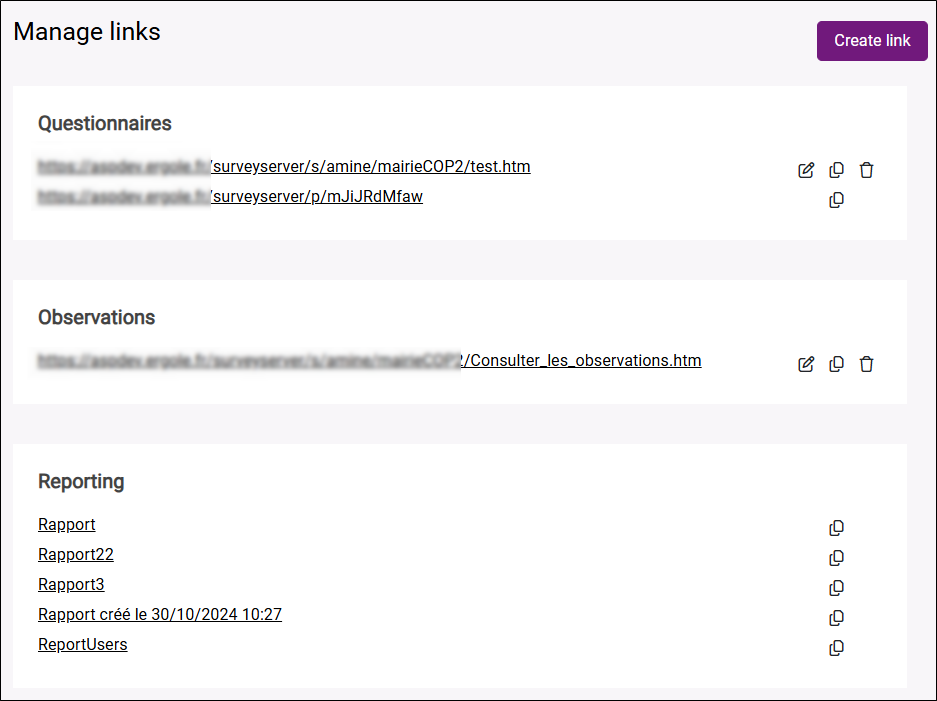
In this section, you can quickly access the various questionnaire/observation and report links for your study. You can copy them, create new ones, edit or delete them if needed.
This is where you will find the shortcuts configured in Sphinx iQ3 : data entry links in the Questionnaires section and modification and tables visualization links in the Observations section.
NOTE: Only links created from this interface can be edited or deleted.
Create a Link
-
Go to the General tab, then click on Link Management.
-
Click the Create Link button.
-
Select the type of link to create and configure its settings:
 Entry Link
-
Give a name to the link.
-
Select the form to use.
-
Configure automatic saving of entries (optional).
auto=1 / auto=2 / auto=3 / auto=4
Entries are saved on every page change, and the page number is retained.
If auto equals 1, 2 or 3, this page will be displayed automatically the next time the user accesses the link.
If auto equals 4, it always returns to the first page.
When the questionnaire is finally submitted:
-
Auto = 1: Access denied (the response is already saved).
-
Auto = 2: Returns to the first page.
-
Auto = 3: Returns to the last page.
-
-
Pre-fill some variables (optional): allows assigning default values.
EXAMPLE: Agency=Annecy&BankCode=7
pre-fills the variables "Agency" and "BankCode".NOTE: Do not use quotation marks around the values.
-
Select the display language of the questionnaire.
If the questionnaire is multilingual, the default choice will be Ask to allow the respondent to choose the language.
-
(Optional) check the Advanced options box to define queries if required.
Requests available for the entry link :
-
autosave : autosave = 1, recording for each question answer (not for each page).
-
conditions : conditions=no, jumps and display conditions are ignored.
-
linkafter : &linkafter=http://......................., the specified script will be executed after the observation has been saved.
This can be used, for example, to write data into another database.
-
linktype : Used to force an action after saving that is different from the default action set during publication. : url|script|confirm
-
&linktype=script&linkurl=<encoded URL> : The responses will be passed as parameters to the script (GET method).
-
&linktype=scriptpost&linkurl=<encoded URL> : The responses will be passed as parameters to the script (POST method). Note: The responses will be returned without the final recalculation of computed variables.
-
&linktype=url&linkurl=<encoded URL>
-
&linktype=form&linkparam=1&linkparam2=html : Information will be sent to form index 1 (indexes start at 0) and as an HTML page. If this parameter is missing, the return will be in the form of an image without clickable links.
-
&linktype=report&linkparam=1 : Information will be sent to report index 1 (indexes start at 0).
-
&linktype=confirm : A simple confirmation will be returned.
-
-
login : Specifies the password for the entry.
-
key : Provides a key for the entry. If the key does not exist, a new observation will be created.
-
readonly : readonly=1, the form is not editable.
-
svnjp : svnjp=1, allows saving the response and continuing the questionnaire entry.
-
transactions : transactions=no, all pages are displayed one after the other.
-
Consult an Observation
-
Give a name to the link.
-
Select the form to use.
-
Select the display language of the questionnaire.
If the questionnaire is multilingual, the default choice will be Ask to allow the respondent to choose the language.
-
(Optional) check the Advanced options box to define queries if required.
Available requests for consulting observations :
-
conditions : conditions=no, jumps and display conditions are ignored.
-
login : Specifies the password for the entry.
-
key : Provides a key for the entry. If the key does not exist, a new observation will be created.
-
sample: Restricts navigation to a specific observation profile.
EXAMPLE: &sample=1 means the profile corresponds to the first predefined stratum.
EXAMPLE: &sample=age>30 and gender="male" means the profile is defined as a Boolean expression.
-
transactions: transactions=no, all pages are displayed one after the other.
-
-
-
Click the Create button.
The link parameters can be edited at any time using the
 button located to the right of the link.
Copy a Link
-
Go to the General tab, then click on Link Management.
A list of created links is displayed (questionnaire links, reports, etc.)
-
Click the
 icon to the right of the relevant link.
Delete a Link
-
Go to the General tab, then click on Link Management.
A list of created links is displayed (questionnaire links, reports, etc.)
-
Click on the
 icon to the right of the relevant link.
-
Click on Delete to confirm the operation.