Modify the regulation options of an invitation/reminder
Regulation options allow you to better control the pace of emails for a campaign (invitation or reminder, whether immediate, scheduled, or automated).
This feature is especially useful for high-volume sends, as it helps prevent blocks or delays from certain email providers that may flag large-scale campaigns as suspicious.
Modify regulation options
-
Go to the sending configuration step of an email invitation or reminder.
-
Under the schedule options, click the Regulation options link to display the available settings.
-
The menu expands and allows you to configure:
-
The delay between each batch of messages, choosing a unit from:
-
Second(s)
-
Minute(s)
-
Hour(s)
-
Day(s)
-
-
The size of each batch, meaning the number of emails sent before the delay is applied.
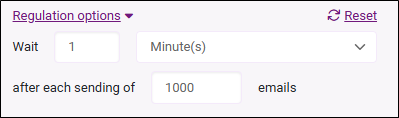
NOTE: By default, emails are sent in batches of 1,000 with a 1-minute delay between each batch. If you set custom values, they will only apply to the current send. Future sendings will use the default values again.
A Reset button allows you to return to the default values at any time.
-
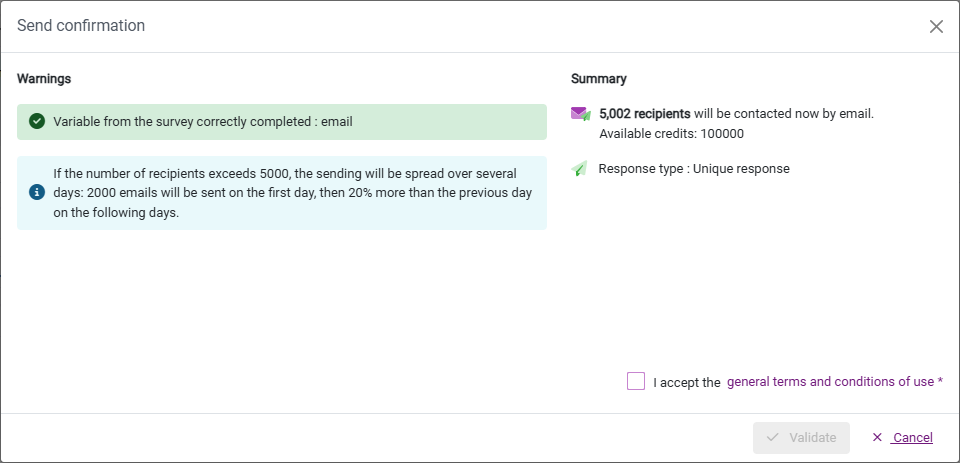
BEWARE: If your recipient list is particularly long, the send (immediate, delayed or automated) will automatically be spread over several days according to your server's settings. You will be informed when confirming the send. Server automatic regulation prevails over the default regulation options or regulation options set in the Timing section.
EXAMPLE: This message is sent to 5,002 recipients and according to the automatic regulation settings of this server:
- 2,000 recipients will be contacted on the first day;
- 2,400 recipients will be contacted on the second day;
- 602 recipients will be contacted on the third day.
So this send is automatically spread over 3 days.