Define a sample
You can filter responses according to a particular sample. This sample can be saved for use in reporting actions if required. You can create, edit and delete a sample.
Create a sample
To create a sample, proceed as follows:
-
In the Data section, select the Spreadsheet tab.
-
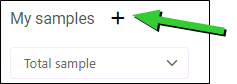
Click on the + button to the right of My samples.
-
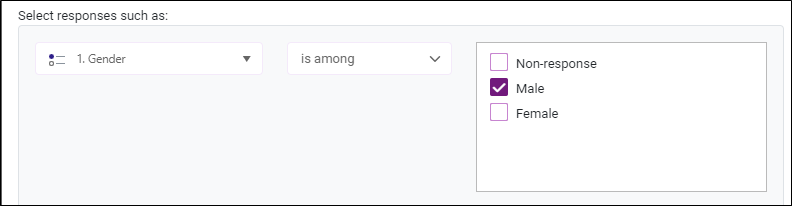
In the drop-down menu "selection responses such as", select the variable to be used.
-
Then select the type of condition: is among / is not among / is between / is not between / is non-response / is not non-response etc. (depending on the type of variable selected).
-
Define the condition.
EXAMPLE: In the example below, we only want to display responses from men - Variable "Gender" is set to "Male".
-
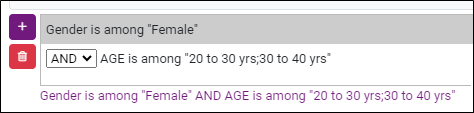
(optional) Click on the button
 to add another AND / OR condition in the case of a multi-criteria condition.
-
(optional) If you would like to save a sample for later use, check Add to saved samples, then give it a name.

-
Click on Validate.
Only observations meeting the conditions of the will be displayed in the spreadsheet.
Edit a sample
To edit a sample, proceed as follows:
-
Select the sample to be edited from the drop-down menu.
-
Click on
 .
-
Make the necessary changes.
-
Click on Validate.
-
A confirmation message appears, click Yes.
Delete a sample
-
Select the sample to be deleted from the drop-down menu.
-
Click on
 .
NOTE: Please note that if the sample is used elsewhere in your survey (reporting, data, analysis views, etc.), it will be deleted everywhere and for all users.
-
A confirmation message appears, click Yes.