Insert an AI Prompt button
The AI Prompt button lets you run an automated AI-powered process using a prompt that you define. When clicked, it generates an output based on a respondent’s answer or another piece of questionnaire data, and applies this output to the variable of your choice.
You can add an AI button to enrich or facilitate the response, for example:
Correct spelling mistakes, summarize an answer, generate an automatic suggestion, rephrase an answer, detect emotions, etc...
BEWARE: Activating this button triggers an automated process based on an artificial intelligence (AI) tool provided by a third-party vendor, on behalf of your organization.
The data sent to the AI depends on your settings. If it includes personal data, please refer to your company’s GDPR policy, which contains information about the processing carried out by the AI.
Le Sphinx acts solely as a data processor and does not use the data transmitted through this feature for its own purposes.
To insert an AI Prompt button, follow these steps:
-
From the Insert tab, in the AI group, click AI prompt.

-
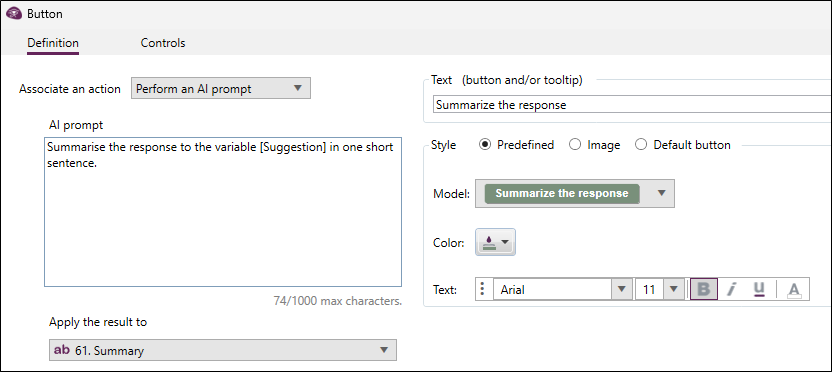
Enter the prompt to use in the AI prompt field.
EXAMPLE: Summarize the answer to the [Suggestion] variable in one short sentence.
-
Select the variable to which you want to apply the prompt output.
-
Enter the text to display on the button, then adjust the style if needed.
-
Click OK.
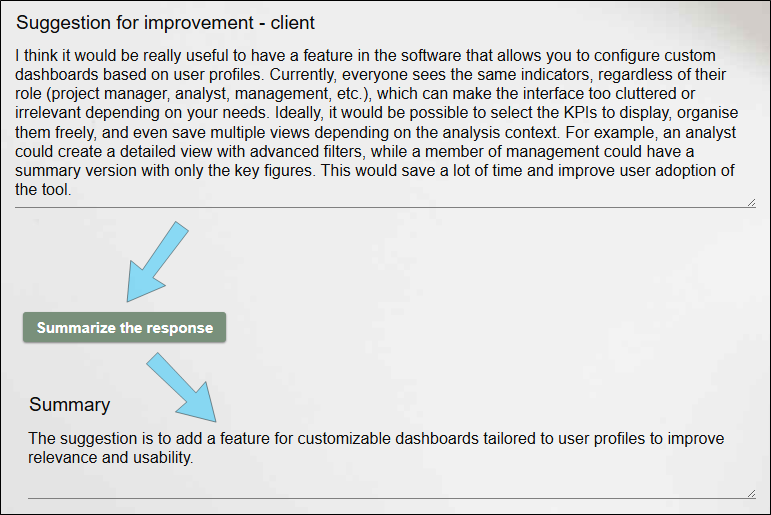
NOTE: For the AI Prompt button to work, you must have enabled AI on your account (by giving your consent) and have enough token credits available.