CREATE A SMARTPHONE FORM
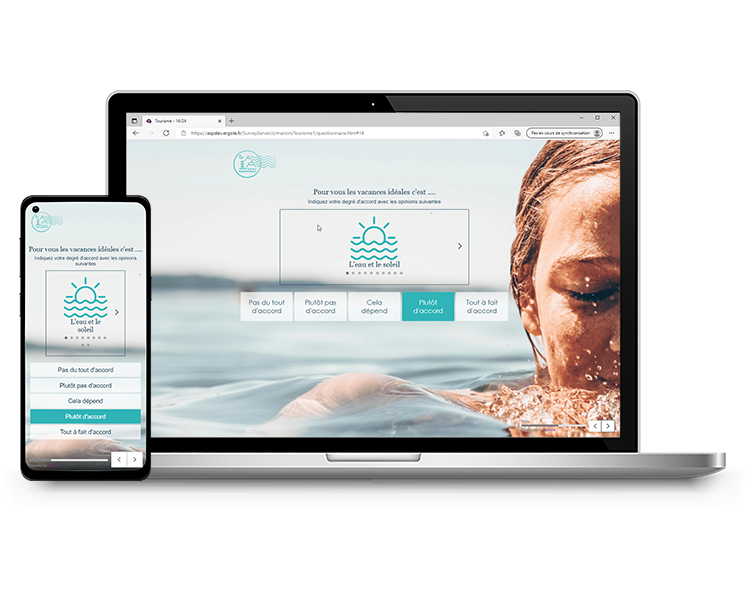
It is now possible with Sphinx iQ3 to create a form adapted to mobile devices.
This will allow you to customize the display of your questionnaire (presentation of questions, alignment and size of objects, etc.) for respondents who access it via a smartphone while keeping the initial display for those who answer from a computer.
EXAMPLE: We have a drag & drop question. This type of presentation is not really adapted to the use on a smartphone, so the idea would be to generate a Smartphone form and to change the type of presentation of the question (in checkboxes for example).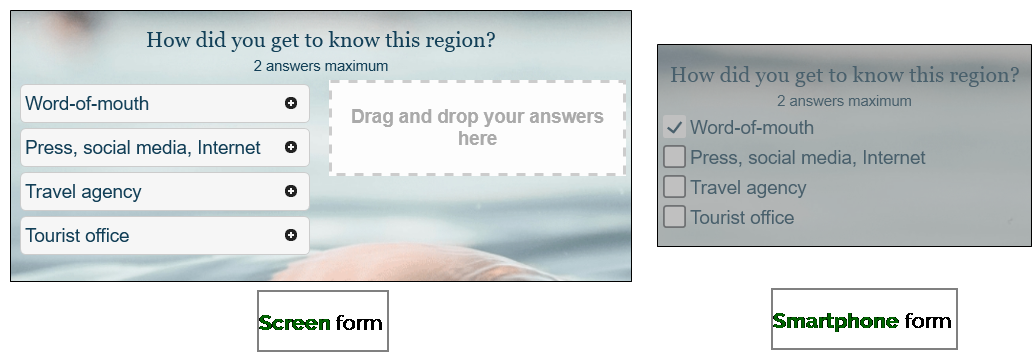
To create a Smartphone form, proceed as follows:
-
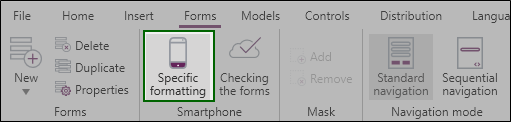
From the Design Environment, Forms tab, click on Specific Formatting.
-
Two icons are then added to the form, click on the + button to the right of the icon
 .
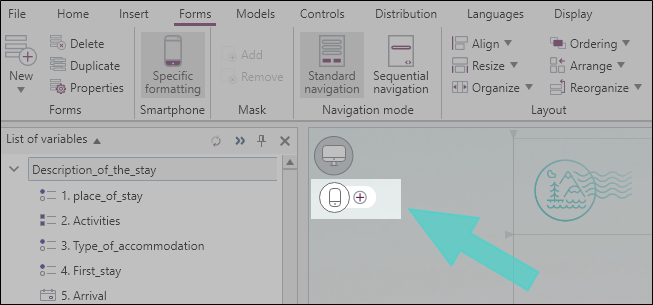
The content present in the screen form will be included in the smartphone form.
-
Proceed to the personalization of your smartphone form.
If you have added a new question or another element in the web form, you must also add this question in the smartphone form or directly click on the
 button to regenerate the smartphone form.
BEWARE: Please do not use this option if you have already started to customize your smartphone form, as the Regenerate smartphone formatting option will repeat exactly what is on the screen form (question layout, colors, font size, etc.), which may overwrite any previous modifications.
-
Click on
 to run a form check.
Or from the Forms tab, bouton Checking the forms.
This option consists in listing the differences between the computer and smartphone forms. This will allow you to identify the list of missing variables on each form and if there is a possible overlap of variables.
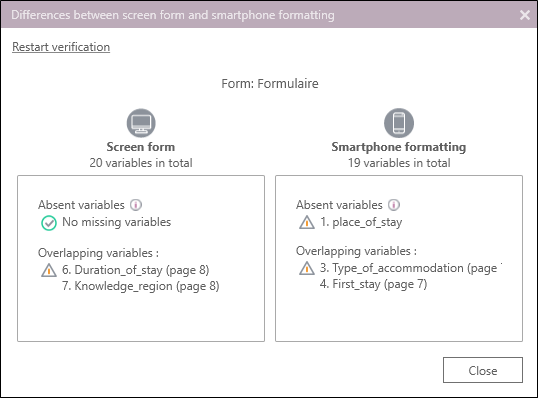
EXAMPLE: In the example above, we can see that the variable 1. Place of stay is missing in the smartphone form and that there is an overlap of variables in page 7.
(If necessary) Simply add the missed variables and replace them in case of overlap then click on Relaunch verification.
To return to the Screen form, simply click on the icon  .