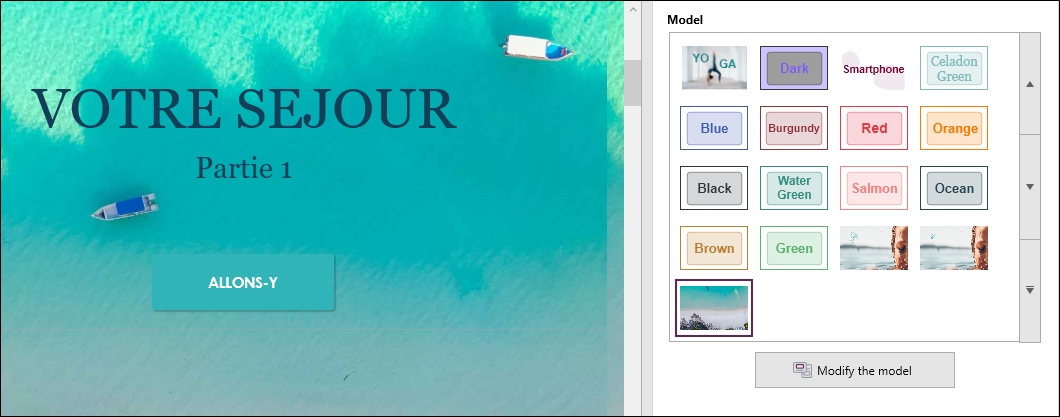
CREATE A FORM model
Create a form model allows you to define the format, the properties of the form as well as the styles of the objects (presentation options for the questions, fonts and colors). This function allows you to have a homogeneous rendering throughout the form.
In addition, the researcher may have to create several questionnaires for the same client. The creation of a form model for the first study allows the researcher to automatically apply it to the new forms created afterwards. All questionnaires have the same format (logo, colors, text size, etc.).
To do so:
-
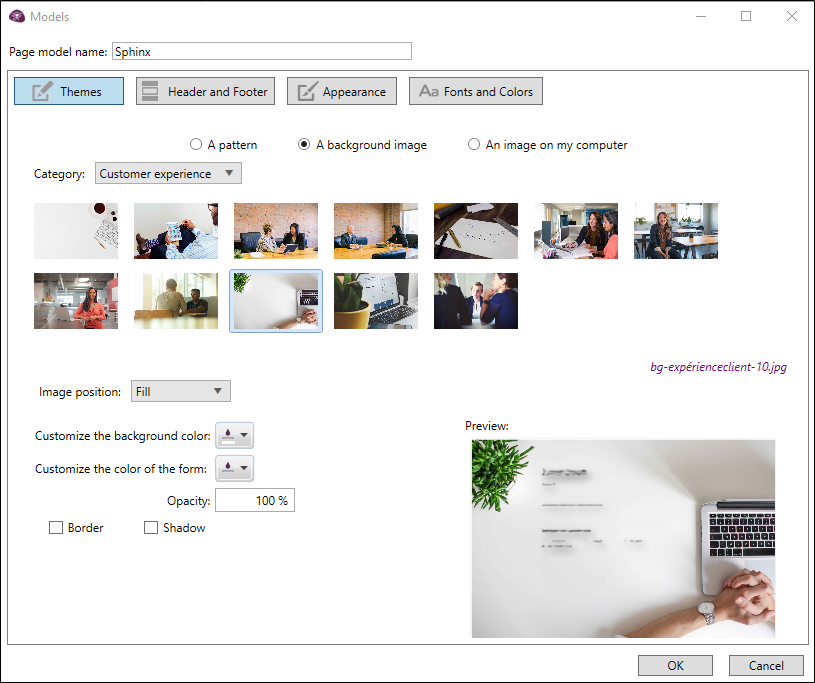
In the Models tab, click on the Create a model button.
-
Give the page model name.
-
Proceed to customize the template from the different tabs available:
-
Themes
You can:
-
Select a pattern (predefined template) or select a custom background image (with the possibility to choose the image position: fill, center, adjust, stretch and repeat).
-
Customize the background color, the color and the opacity of the form.
-
Add a border and shading if necessary.
-
-
Header and Footer
You can:
-
Add a title and an image (logo) in the header.
-
Add a background image in the footer.
-
-
Appearance
You can:
-
Set the default visual representation of each type of question.
-
Set the content to be displayed (title, label, variable name, instructions etc...).
-
Set the parameters of the data entry zone.
-
Set the spacing between elements (questions, titles, text zones and multimedia objects).
-
-
Fonts and colors
-
Set the fonts and colors to be used for each object (question, table, part, text and button).
-
-
-
Click on OK to validate.
After validation, a new form will be added to the list of predefined templates. It is possible at any time to modify or delete the created template, and to create new templates.
NOTE: Note that it is possible to retrieve a presentation template from another study.
To do so:
-
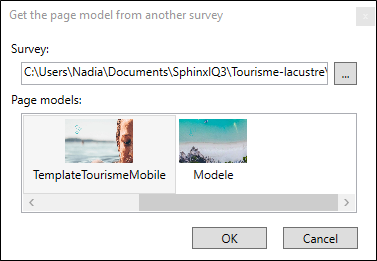
From the Models tab, click on Import a template.
-
Select the survey.
-
Select the model to import from the list.
-
Click on OK to validate.
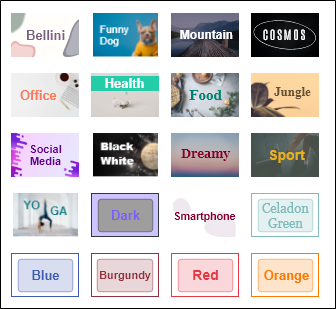
Note that you also have access to predefined templates that you can use to customize your form.
To do so:
-
From the Questionnaire Design environment, click on the Models tab.
-
Select a model to use from the list.

Or
-
From the working environment, select a model from the menu on the right.