MODIFY THE QUESTIONS' PRESENTATION PARAMETERS
To change the presentation settings for a particular question:
-
Select the question.
-
Then make the change from the Styles tab on the right side of your screen.
NOTE: Changes made to a question are visible in real time in the form.
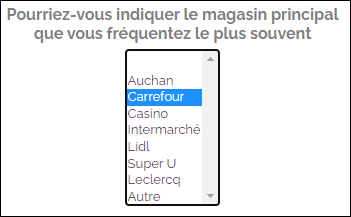
Several presentation options are available to customize the question, the modalities, the instruction, the outline, etc.
Below is a list of the different types of presentation possible depending on the type of question.
| Closed question | Scale question | Question Date/Time,Text/Code Numerical | Table question |
|---|---|---|---|
|
|
|
|
Closed/ Scale question
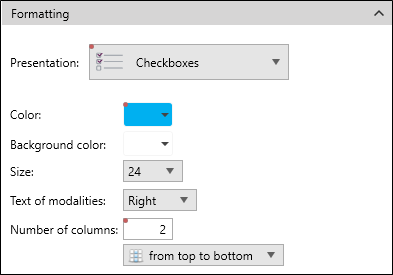
 Checkboxes

Setting up the visual representation:
-
Choose the checkbox color.
-
Set the size of the checkbox.
-
Choose the location of the text of the terms.
On the left, on the right, above or below the checkbox.
-
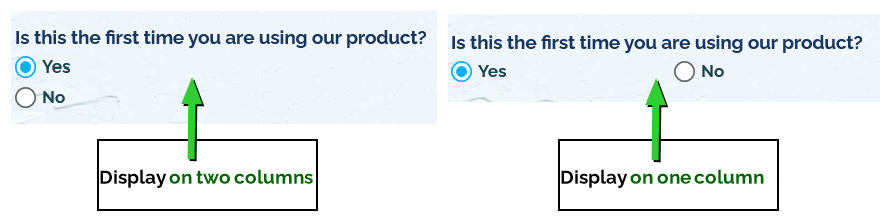
Set the number of columns (display the modalities on a single column or on several columns).
Images
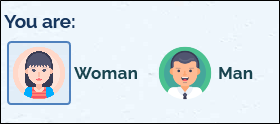
Setting up the visual representation:
-
Select the images to use:
-
Click on the drop-down menu to display the predefined images.
-
If you want to use your own images, follow these steps to import them:
-
Click on
 .
-
Click on
 .
-
Click on Select another image.
-
Select an image from your computer.
-
Click on Ok to validate.
-
-
-
Choose the images size.
-
Choose the location of the text of the terms and conditions.
On the left, on the right, above or below the checkbox.
-
Set the selection color.
-
Set the number of columns (display the modalities on a single column or on several columns).
Post-It

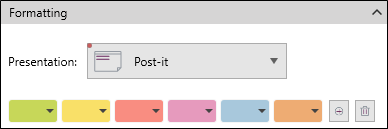
Setting up the visual representation:
-
Choose the color to use for each modality.
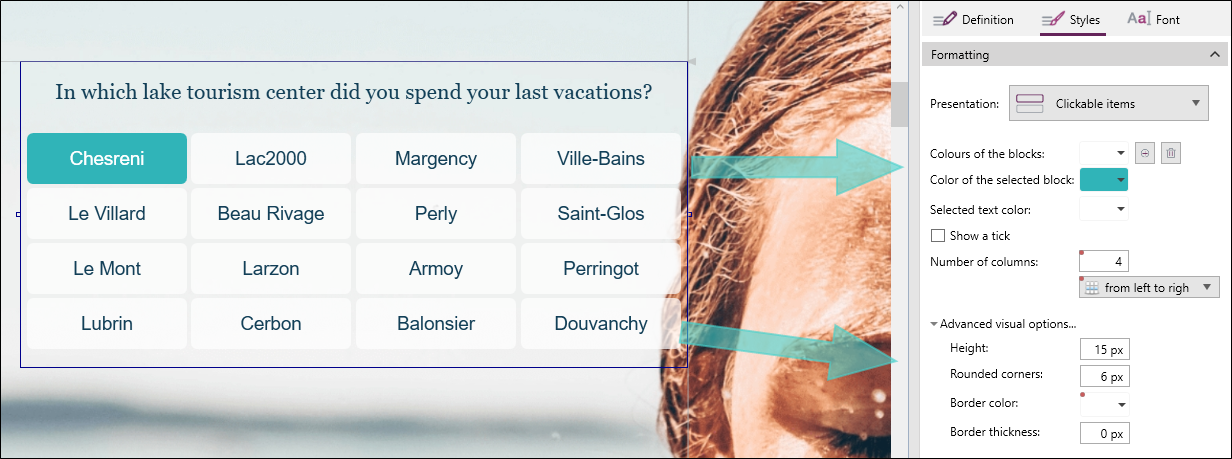
Clickable items

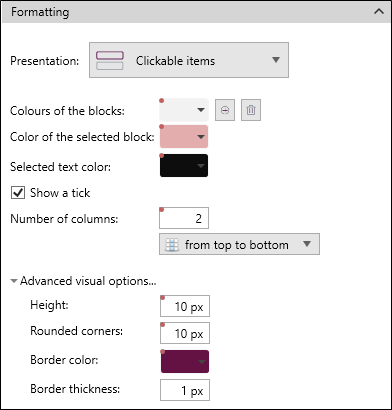
Setting up the visual representation:
-
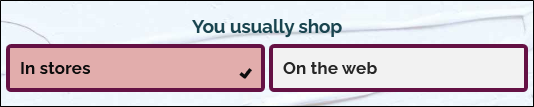
Define the color of the blocks.
-
Set the color of the selected block and the selected text.
-
Display or not a tick when a block is selected.
-
Set the number of columns (display the modalities on a single column or several columns).
-
Advanced visual options:
-
Set the height of the blocks.
-
Modify the rounded corners.
-
Set a border (define its color and thickness).
-
Chips

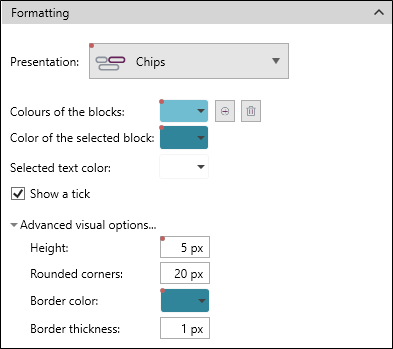
Setting up the visual representation:
-
Set the chips color.
-
Set the selected block color and the selected text color.
-
Show or not a checkmark when a chip is selected.
-
Advanced visual options:
-
Set the height of the chips.
-
Modify the rounded corners.
-
Set a border (set its color and thickness).

-
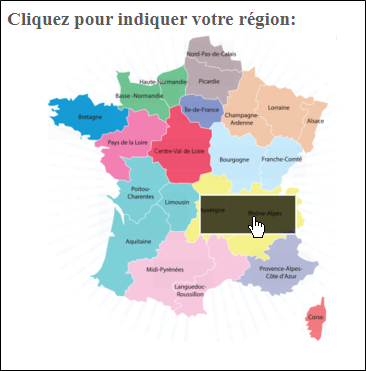
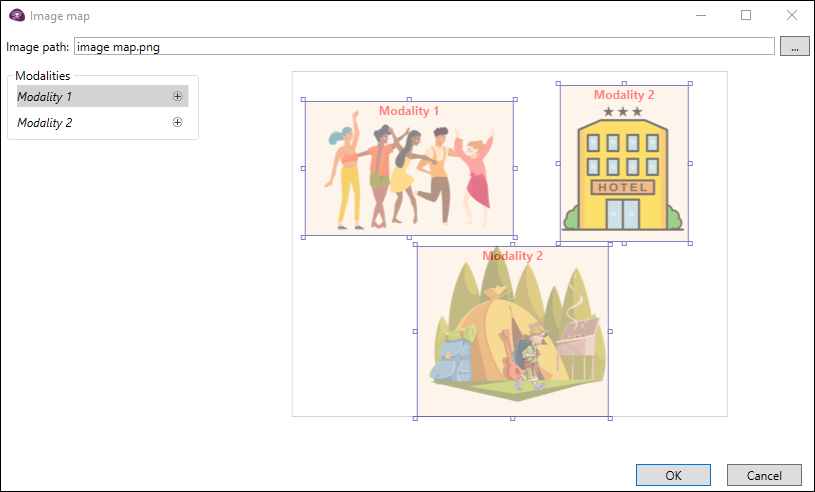
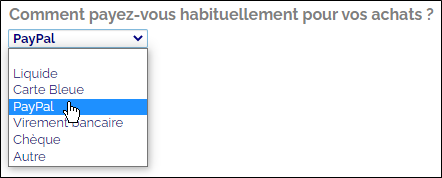 Image map
Setting up the visual representation:
-
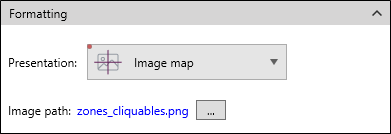
Choose the image to use by clicking on
. -
Set a clickable area for each modality by clicking on
.
-
Click on OK to validate.
 Drag and drop
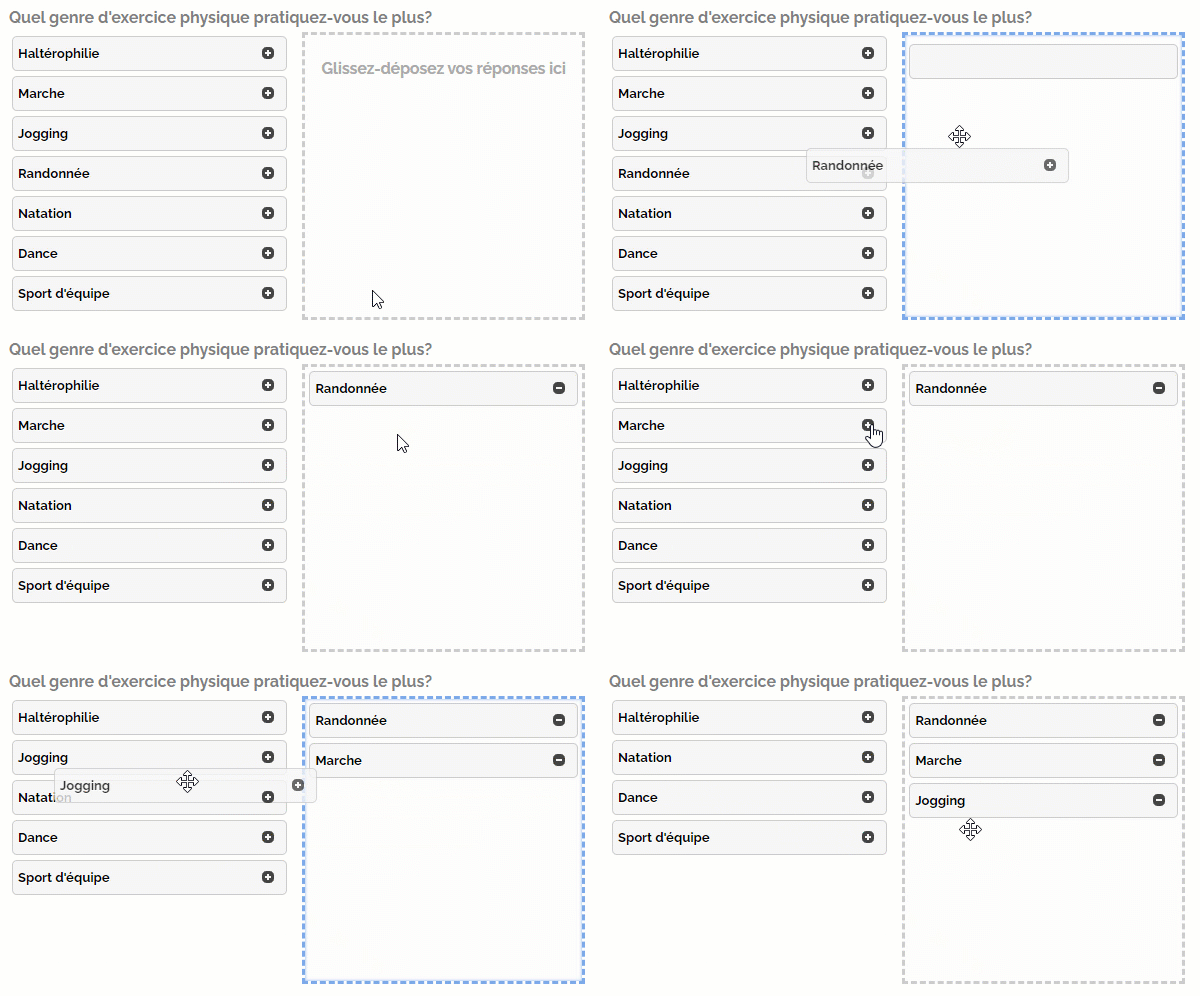
Click on the image for an animated preview
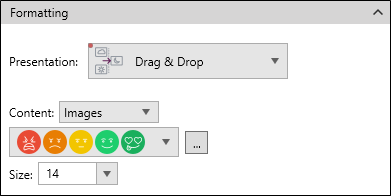
Setting up the visual representation:
-
Select the format of the content to be displayed:
-
Text of modalities
-
Images
-
Click on the drop-down menu to display the predefined images.
-
If you want to use your own images, follow these steps to import them:
-
Click on
. -
Click on
. -
Click on Select another image.
-
Select an image from your computer.
-
Click on Ok to validate.
-
-
-
Numbered scale

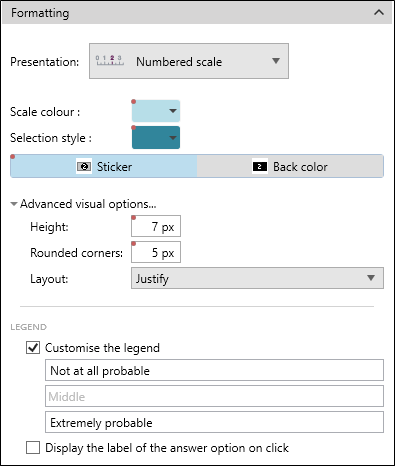
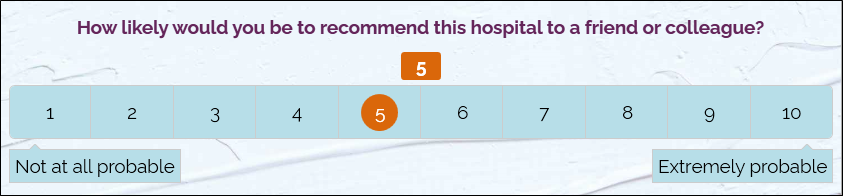
Setting up the visual representation:
-
Select the color of the scale.
-
Select the selection color and style(Sticker or Back color).

-
Customize the modality legend (the extremities: modality on the left, on the right and in the center).
-
Display the label of the answer option on click.
-
Advanced visual options:
-
Define the height of the scale.
-
Modify the rounding of the corners of the scale.
-
Change the layout of the scale:
Left, right, center, or justify of the question.
-
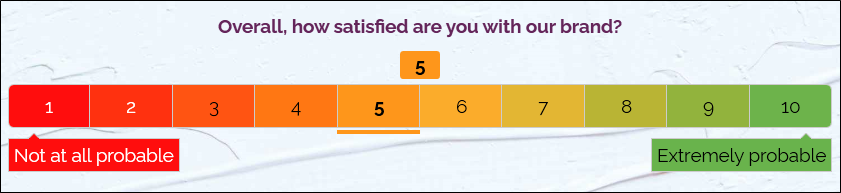
Colored numbered scale
Setting up the visual representation:
-
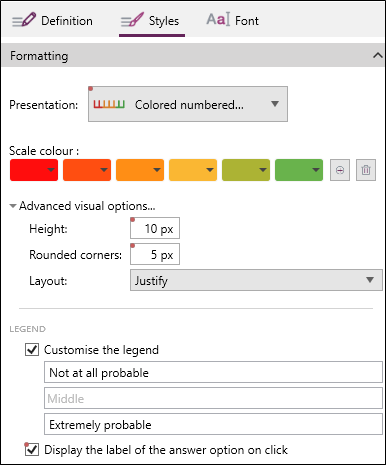
Select the scale color.
-
Customize the legend of the modalities (the extremities: modality on the left, on the right and in the center).
-
Display the label of the answer option when clicking.
-
Advanced visual options:
-
Set the height of the scale.
-
Modify the rounding of the corners of the scale.
-
Change the layout of the scale:
Left, right, center, or justify of the question.
-
Dynamic numbered scale
This type of presentation makes it possible to obtain dynamic colors when the respondent passes the cursor over the modalities.
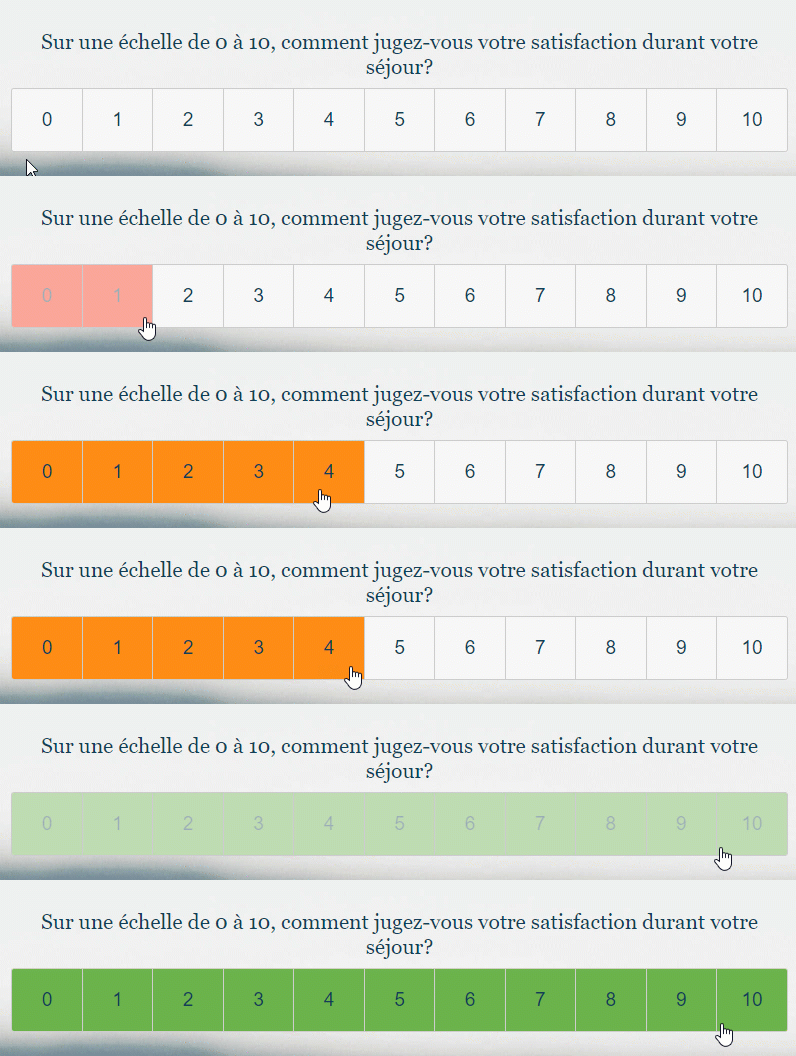
Click on the image for an animated preview
Setting up the visual representation:
-
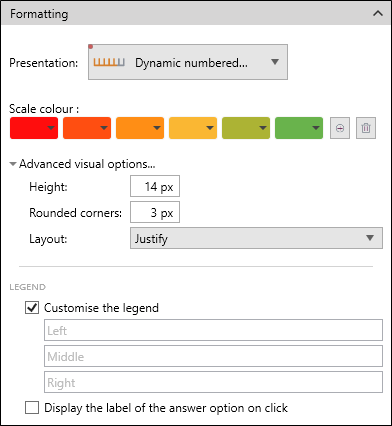
Select the scale color.
-
Customize the legend of the modalities (the extremities: modality on the left, on the right and in the center).
-
Display the label of the modality when clicking.
-
Advanced visual options:
-
Set the height of the scale.
-
Modify the rounding of the corners of the scale.
-
Change the layout of the scale:
Left, right, center, or justify of the question.
-
Graduated scale

Setting up the visual representation:
-
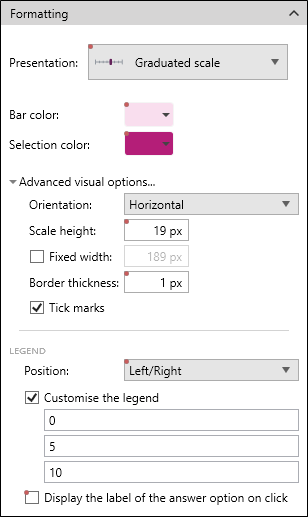
Set the color of the bar.
-
Set the color of the selection.
-
Customize the modality legend (the extremities: modality on the left, on the right and in the center) and define its position.
-
Display the label of the modality on click.
-
Advanced visual options:
-
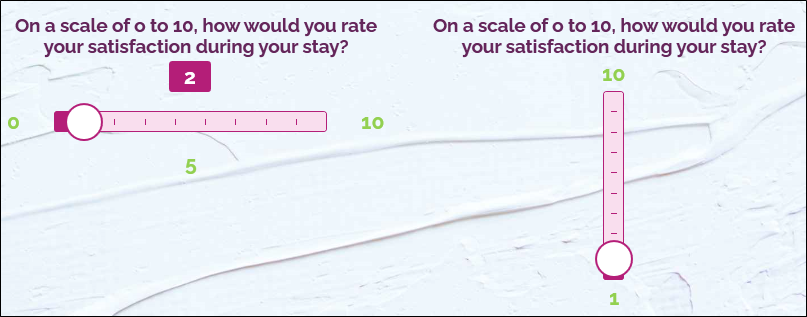
Choose the scale orientation: Horizontal or Vertical.
-
Set the height of the bar.
-
Customize the width.
-
Set a border.
-
Display or not the graduations.
-
Animated cursor
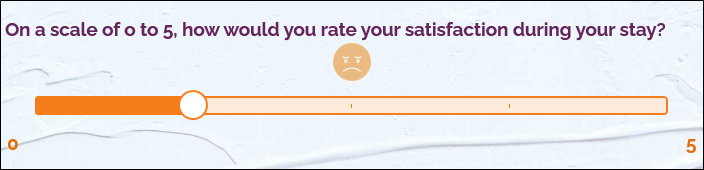
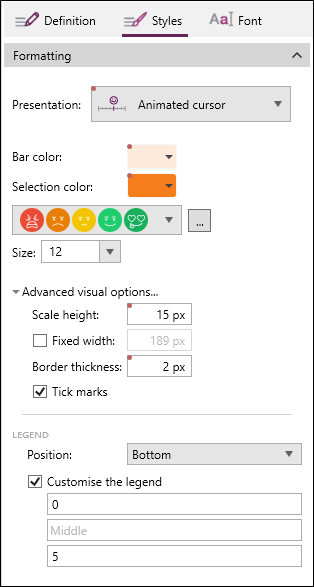
Setting up the visual representation:
-
Set the color of the bar.
-
Set the color of the selection.
-
Select the pictographs to be used and their size.
-
Click on the drop-down menu to display the predefined pictographs.
-
If you want to use your own images, proceed as follows to import them:
-
Click on
. -
Click on
. -
Click on Select another image....
-
Select an image from your computer.
-
Click on OK to validate.
-
-
-
Customize the legend of the modalities (the extremities: modality on the left, on the right and in the center) and define its position.
-
Advanced visual options:
-
Set the height of the bar.
-
Customize the width.
-
Set up a border.
-
Display or not the graduations.
-
Fill icons
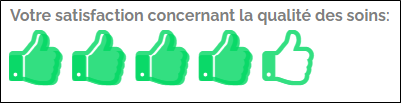
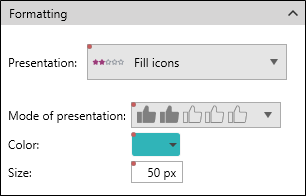
Setting up the visual representation:
-
Select the presentation mode to be used from the drop-down menu provided for this purpose.
-
Set the color of the dynamic icons.
-
Set their size.
Date/Time, Text/Code, Numerical question
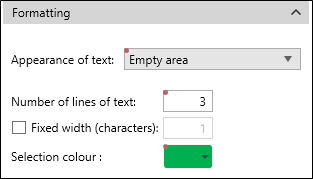
Empty area

Setting up the visual representation:
-
Set the number of rows of text.
-
Set the width of the area in number of characters.
-
Choose the selection color.

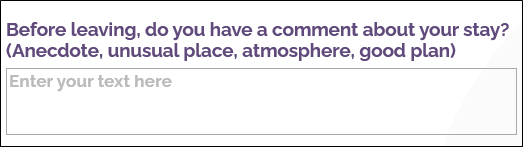
Table question
 Line by line
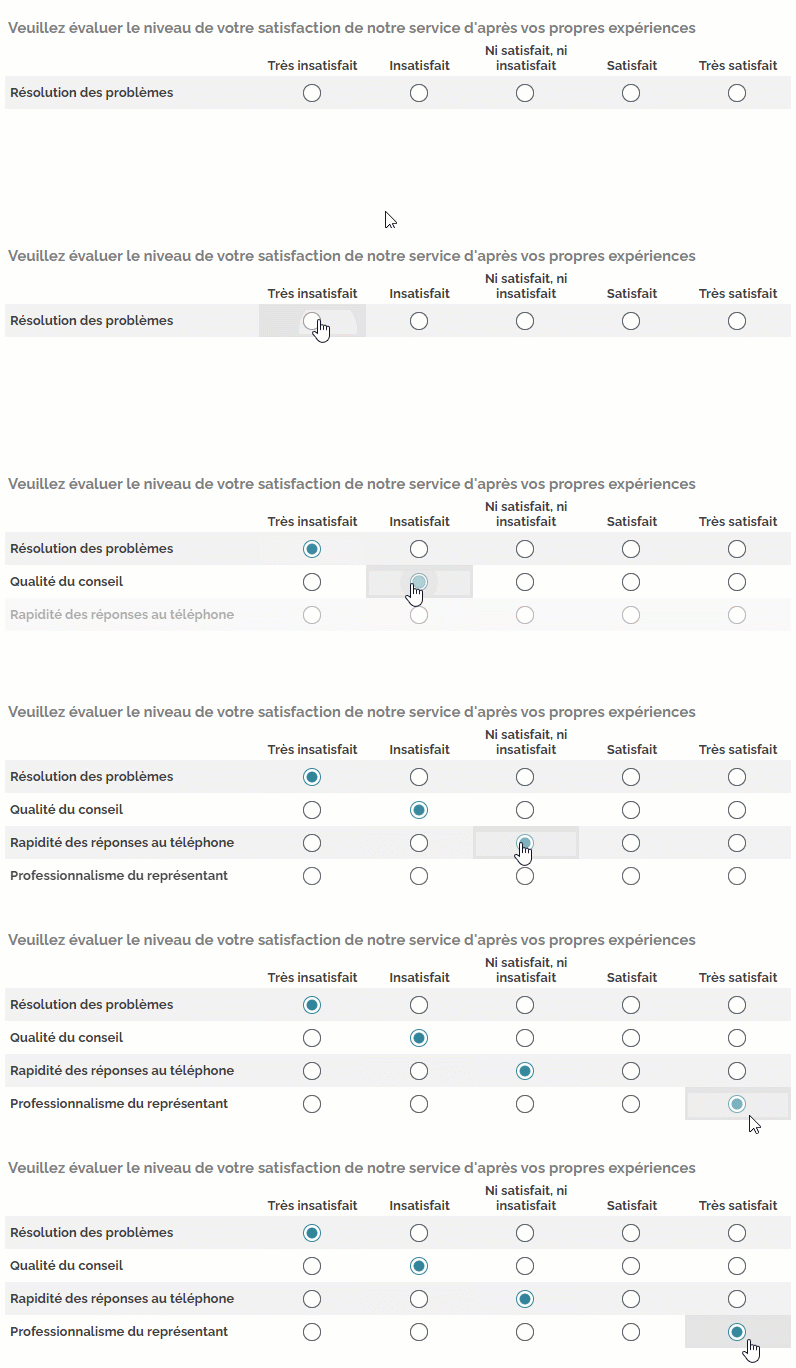
Click on the image for an animated preview
Carousel
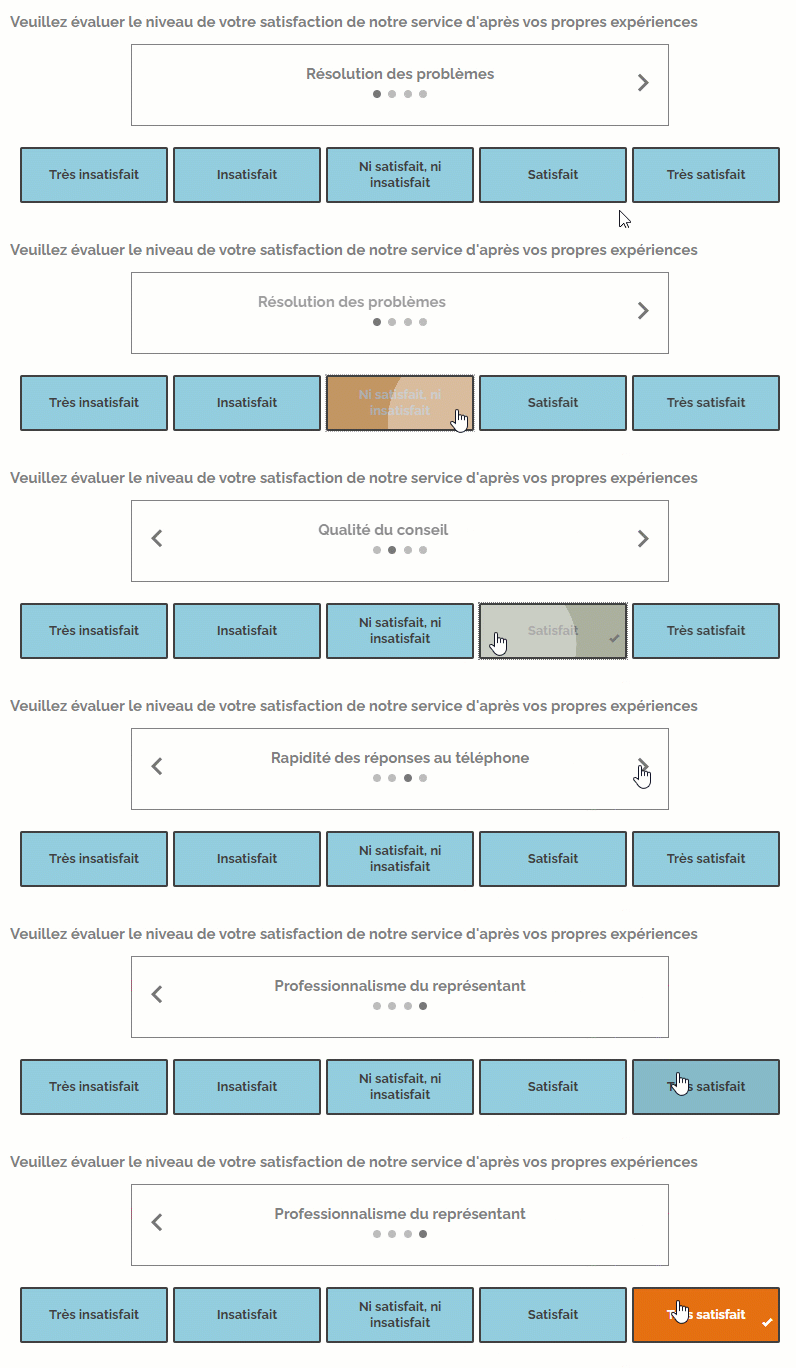
Click on the image for an animated preview
Splitted
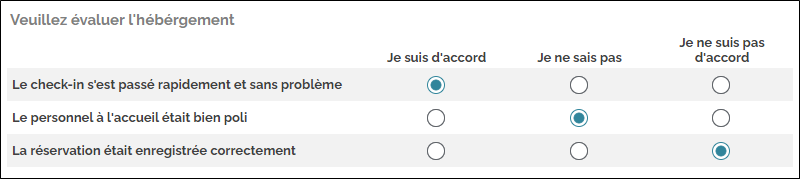
This type of presentation is particularly adapted to the smartphone display, it allows you to split your table line by line by displaying the modalities for each line.
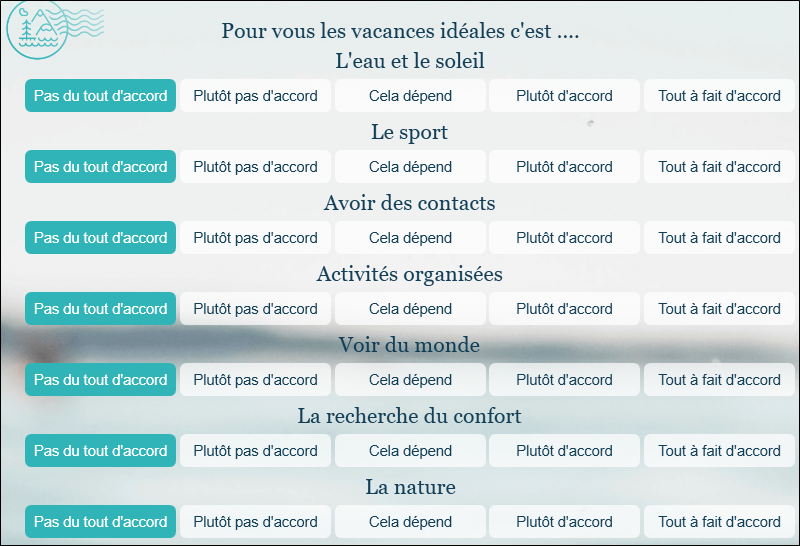
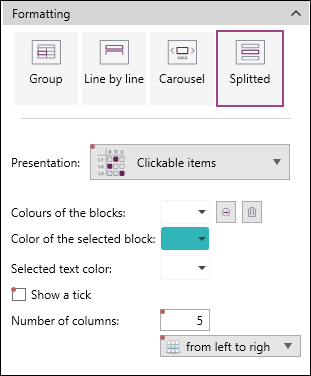
Setting up the visual representation:
-
Select the type of presentation to be used to display the terms and conditions.
-
Change the available options according to the selected type.
Copy the format of a question
If you are happy with the format of a question, it is possible to reproduce it for other questions. To do so:
-
Select the question whose format you want to reproduce.
-
From the Home tab, click on
 .
-
Then select the question for which you want to reproduce the format.
-
From the Home tab, click on
 .
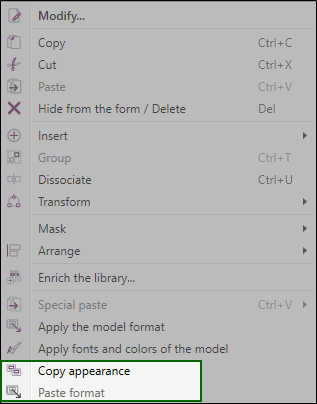
You can also right-click on the question and select Copy appearance and then Paste format.