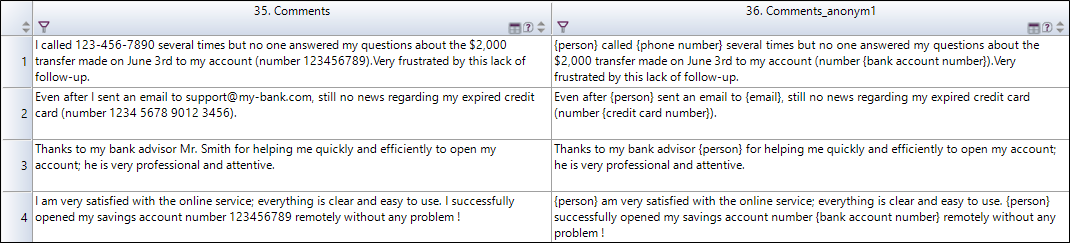
Anonymise a variable
This feature allows you to anonymize responses to text-based questions by automatically identifying sensitive information.
 List of Anonymized Data
|
Person |
Address | CVC | Company name |
| Date of Birth | Postal Code | Bank Account Number | Insurance Number |
| Blood Type | Email Address | IBAN | Username |
| Medical Condition | Credit Card Number | Social Security Number | IP Address |
| Medication | Credit Card Expiration Date | Health Insurance ID Number | Social Media ID |
|
Phone Number |
CVV | Health Insurance Number | Driver’s License Number |
| Fax Number | Credit Card Brand | National Health Insurance Number | License Plate Number |
| Train Ticket Number | Visa Number | Flight Number | Vehicle Registration Number |
| Booking Number | Organization | Passport Expiration Date | Passport Number |
| Identity Document Number | Birth Certificate Number | Tax Identification Number | National Identification Number |
| Student Number | Transaction Number | Serial Number | Registration Number |
How does the response anonymization model work?
This feature is based on a named entity recognition (NER) model specifically designed to detect and anonymize sensitive information found in responses to open-ended questions. Unlike Large Language Models (LLMs), this model performs no generative processing, and no data is transmitted to external services.
The model is hosted exclusively on our secure infrastructure, ensuring full control over data processing. No data is sent outside of the iQ3 environment.
Supported languages
French, English, Spanish, Portuguese, German, Russian, Arabic, Italian, Ukrainian, Norwegian, Swedish, and Danish.
NOTE: Anonymization applies to all observations of a variable, regardless of the language in which they were entered.
To anonymize the responses for a variable, proceed as follows:
-
(Required) Log into your SphinxOnline account from Sphinx IQ3.
Procedure for logging into the SphinxOnline account from Sphinx IQ3 :
-
Open the Sphinx IQ3 software program.
-
Click on Connection in the top right-hand corner of the screen.
-
Select the Server URL (where your account is hosted).
The drop-down menu allows you to select the server on which your survey will be published. By default, the SphinxOnline (www.sphinxonline.com) shared server is selected.
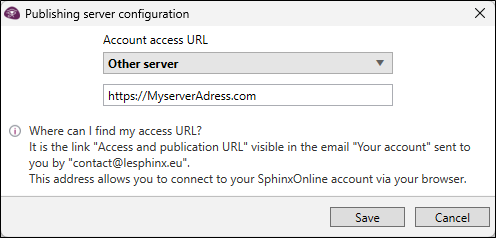
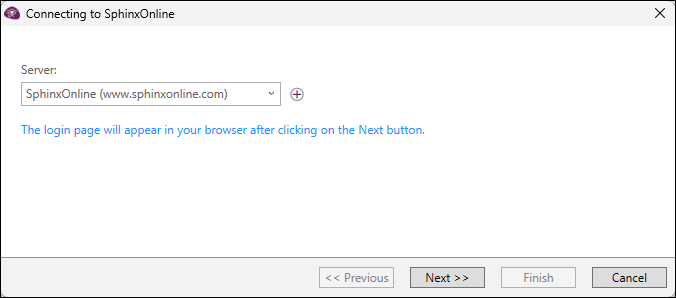 If the server URL is not present in the list :
-
Click on the + button.
-
Select Other server from the Server drop-down menu.
-
Insert the URL address of your server.
-
Click on Save to validate.
-
-
Click on Next.
-
SphinxOnline will open in your browser: if you are not yet logged in, enter your login details and click on Log in.
-
A dialog box will open in your browser. Click Open Sphinx iQ3.
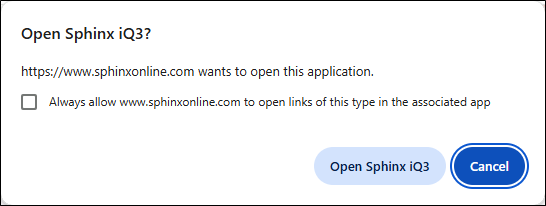
NOTE: Check the “Always allow [server URL] to open links of this type in the associated app” option to avoid displaying this window on subsequent logins.
-
Return to the Sphinx iQ3 application.
NOTE: Connection to your online account from iQ remains active for a sliding period of 5 days: each new interaction with the server (publication, import, etc.) resets this period for a duration of 5 days from the action.
Once logged in, the account name appears in the top right-hand corner of the screen.
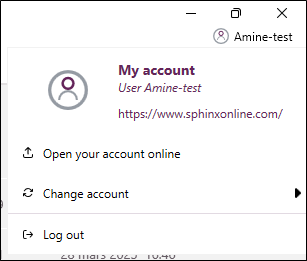
By clicking on it, you can:
-
Open the online account in the browser.
-
Change account (if the personal account is linked to one or more collaborative accounts).
-
Log out.
-
-
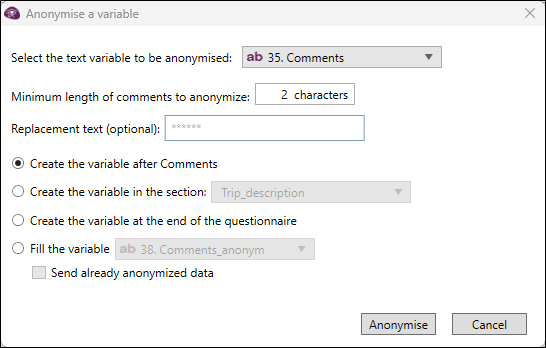
In the Texts tab, click on Anonymise.
-
Select the text variable to be anonymized.
-
Specify the minimum observation length to consider in number of characters (e.g. 2 characters).
-
(Optional) Type in the text to display instead of sensitive data (e.g. XXXXX).
-
Select where to insert the new variable:
-
Create the variable after the selected variable;
-
Create the variable in the section (section to determine);
-
Create the variable at the end of the questionnaire.
-
If you already anonymized a variable, you can Fill the variable. This can be useful if a respondent changed their response or if new observations were entered and are not yet anonymized.
NOTE: By default, anonymization only impacts empty cells of the previously anonymized variable. You can choose to Send already anonymized data (i.e. the whole dataset).
-
-
Click on Anonymise to finish.