software INSTALLATION
To successfully complete your survey projects, please first successfully install your Sphinx iQ3 software by following the steps described below.
Required configuration
| RECOMMENDED CONFIGURATION | MINIMAL CONFIGURATION |
|---|---|
|
|
NOTE: Please make sure that the drivers for your graphics card are up to date (latest version available).
| SYSTEM | BROWSERS |
|---|---|
|
For optimal use of the online surveys, it is preferable to use the most recent versions of the following browsers:
|


The flow arriving on port 80 (https) are automatically redirected to port 433 (https).
NOTE: if you have a floating license, simply follow this procedure:
https://infos.lesphinx.eu/docs/Installation_flottante_iQ3_en.pdf
Authorization requirements
User access rights
Our software, Sphinx IQ3 and SphinxScan, require the following access rights:
-
Read access to the %PROGRAMDATA%\Le Sphinx Développement directory (and its sub-directories).
-
Full control over the following directories:
-
%APPDATA%\Le Sphinx Développement (and its sub-directories).
-
%LOCALAPPDATA%\Le_Sphinx_Développement (and its sub-directories).
-
Software installation directory (and its sub-directories).
-
-
Read rights on the registry.
It is possible that the license key may become temporarily inaccessible due to a system-related problem, for example, if the access rights of the user running Sphinx IQ3 or SphinxScan are changed for any of the following:
- Sphinx entries in the registry
- Sphinx files stored in the installation directory
- %APPDATA% et/ou %PROGRAMDATA% directories
To install or modify the Sphinx IQ3 and SphinxScan license, you need write access to the %PROGRAMDATA%\Sphinx Développement directory (and its sub-directories) and registry modification rights.
Exchanges between Sphinx IQ3 and the SphinxOnline server
The Sphinx iQ3 software must be able to communicate with the SphinxOnline server in order to:
-
Determine whether it has the right to run if the license used is of the floating type,
-
Display news and check the availability of a new version,
-
Test the survey (by clicking on the "Test" button), a publication is made on the SphinxOnline server with the structure of the survey (without the data).
To do this, you need to authorize flows on:
-
217.182.188.204: www.sphinxonline.com
-
217.182.188.203: www.sphinxonline.net
Publishing a Sphinx iQ3 survey
Publishing a survey from Sphinx iQ3 on a server requires opening the HTTPS flow between the Sphinx IQ3 software and the publication server used.
This publication server can be the main SphinxOnline shared server (www.sphinxonline.com) or any other shared server (or a dedicated server or a connect server).
Please note that when a survey is published, a password-protected, encrypted ZIP archive is also uploaded online (which potentially contains the survey data).
Analysis module (DATAVIV)
Using the analysis module of the Sphinx IQ3 software involves client/server network exchanges entirely locally on the machine running it:
Sphinx IQ3 is made up of several application bricks which exchange data via 3 different network protocols:
-
Net.tcp for the Dataserver,
-
Http for the export service and access to the analysis module,
-
Websocket for the analysis view export service.
These exchanges are always made using the host name "localhost".
Each application brick uses a listening port determined dynamically when the software is launched from the available TCP ports between 1024 and 65535.
Please ensure that your anti-virus/firewall software solution, often installed on the machine running Sphinx IQ3, does not block any of these local network flows for Sphinx IQ3 to be fully functional.
Single-user license installation
A single-user license is associated with a key that allows individual installation of the software.
You can have a single-user license for a defined number of users (number of possible activations).
To install a single-user license, proceed as follows:
-
Download the installation file of the « SetupSphinxIQ3.exe » software.
-
Open the file explorer.
-
Display the contents of the download folder *.
* the directory where the downloaded files are stored is defined in the Internet browser.
-
Double-click on the « SetupSphinxIQ3.exe » icon.
NOTE: You have to be in administrator mode to install and activate the software.
-
Click on Next.
-
(Optional) Choose the installation directory of the software files by clicking on the Modify button.
NOTE: We recommend you keep the default directory: C:\Program Files\SphinxIQ3.
-
Click on Next.
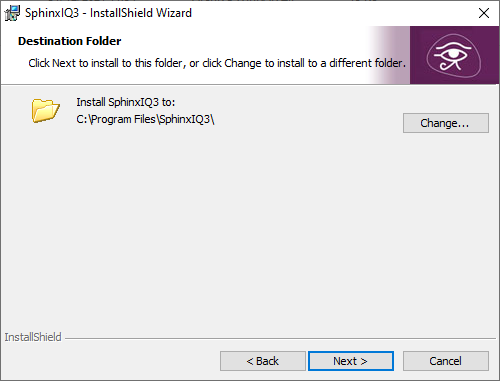
-
Click on Install,
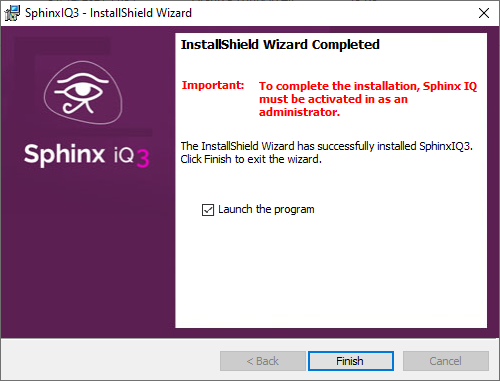
A message confirms that the installation has been well done.
-
Click on Finish.
Key activation
The first time you open Sphinx iQ3, it will run in demo mode. To access the full version, you will need to enter your installation key. To activate your license key, proceed as follows:
-
Launch your software in administrator mode.
-
Select the option You have an installation key.
-
Enter the installation key that was sent to you by email.
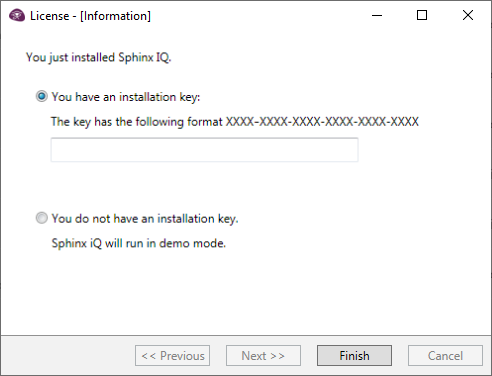
-
Click on Next.
-
In case of detected internet connection, the activation will be done automatically.
-
In case of absence of internet connection (no internet access, network problem or other), a window precising that the software hasn't been activated appears:
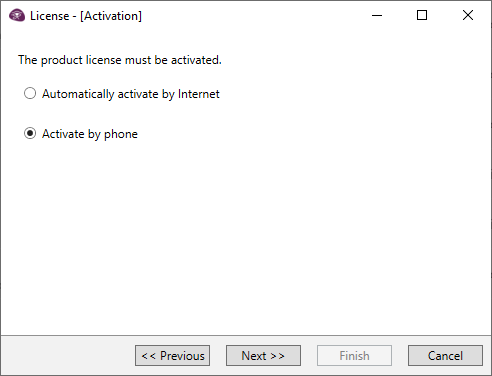
If the Internet connection is not possible:
-
-
Select the option Activate by phone,
-
Lift up the codes C1 and C2 and transmit them to our services with your client code by call : 04 50 69 82 98 or by mail: contact@lesphinx.eu
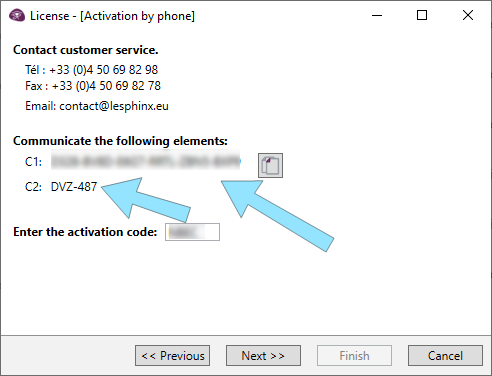
NOTE: This activation is mandatory. As long as it is not done, your software will run in Demonstration mode.
If you encounter a problem during the installation, note the error number and contact us on: 04 50 69 82 98.
Update Sphinx iQ3
If you have a maintenance contract, perform minor updates of your software by clicking on the Search for updates button from the home panel.
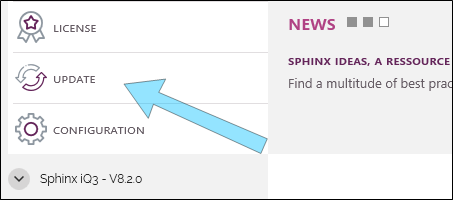
NOTE: You must first launch your software in administrator mode to carry out the update.
The search for updates is performed directly when you open Sphinx IQ3, provided you have Internet access.
Uninstall or move a single-user license
Move a single user license:
The Sphinx user license is installed on computer A, we want to move it to computer B. To move a license proceed as follows:
-
Check that you are in possession of your installation key.
-
Open your software on the first computer.
-
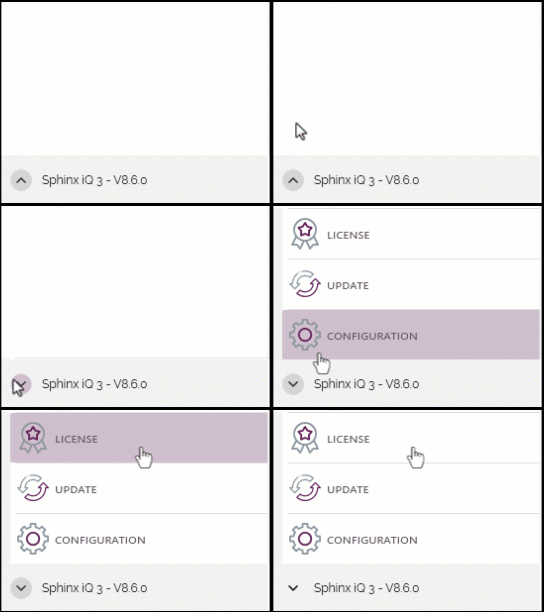
Click on license from the home panel.
-
Select "You want to deactivate the license".
NOTE: Please ensure that your computer is connected to the internet before deactivating the license.
-
Click on Next,
-
Activate your license on the second computer (see procedure above).
Uninstall the software on a desktop:
To uninstall the Sphinx IQ3 software on a desktop, proceed as follows:
-
From the Windows Control Panel, click on Uninstall a program.
-
Select the Sphinx IQ3 software from the list of programs.
-
Click on Yes in the dialog that appears.
The deactivation of the installation key will be done automatically at the uninstallation. It is therefore necessary to have an active internet connection at this time.
NOTE: Uninstalling the software does not affect your survey files.
Removing Sphinx iQ3 from a workstation does not delete any associated working files (survey files, databases, exports, etc.).
These files remain on the local drive unless manually deleted by the user. We recommend backing them up regularly, especially if you plan to reinstall the software or switch workstations.