View filter
The view filter is used to select one or more variables that will be applied as a filter for the entire view. This allows you to have the results on the respondent group that interests you.
There are two ways to set up a view filter.
-
The first solution is to select view filter by hovering over the button to add a new element (
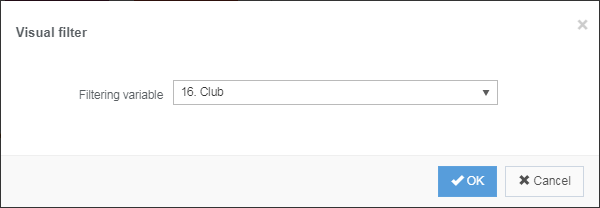
 Button). A new window opens next where you have to choose the filter variable from the drop-down menu. This will then appear in the filter area at the top of the page.
-
The second solution is to drag & drop a variable directly into the filter area at the top of the page.
NOTE: It is possible to drag & drop as many variables as you want in the filter area.
-
A filter variable can be removed by moving the cursor over it and clicking
 .
-
Applied filters can be reset by clicking
 .
You can change the parameters of the variables that are placed in the filter area. It is possible to:
-
Choose which modalities to show / hide (learn more about modalities management).
-
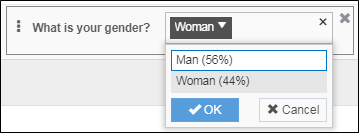
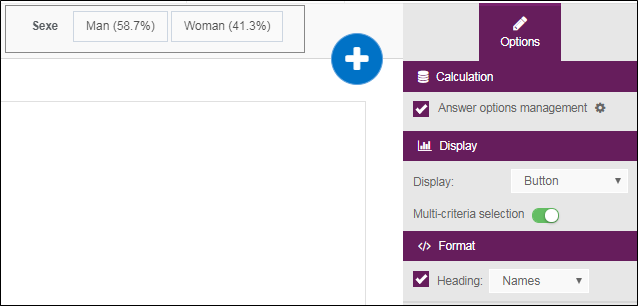
Change the presentation of the modalities of a variable (in buttons or in drop-down list).
When the filter is displayed as a drop-down list, the user will have to click on the OK/Cancel button to validate or not the modalities selection.
-
Allow or not the multi-criteria selection (the multi-criteria selection is selected by default).
-
Change the title format of a variable: display name / label or an alias (editable).
-
Display/hide values (values are displayed by default).
-
Select one or more default values (modalities).
The value(s) will be preselected upon opening the view.
-
Set the Menu width (available only for the Drop-down list display type). This option increases the width of the drop-down list when some response options are truncated.
Enter a value in pixels (px). The width must be between 180 px and 900 px.
-
Make the view filters dependent on each other by checking the Apply cascading filters option from the view properties, Display tab.
The selection of a filter impacts the content of the filters located to its right.
EXAMPLE: We select the Haute-Savoie department in the 1st filter, which impacts the content of the Cities of France filter to display the Annecy modality in our example.
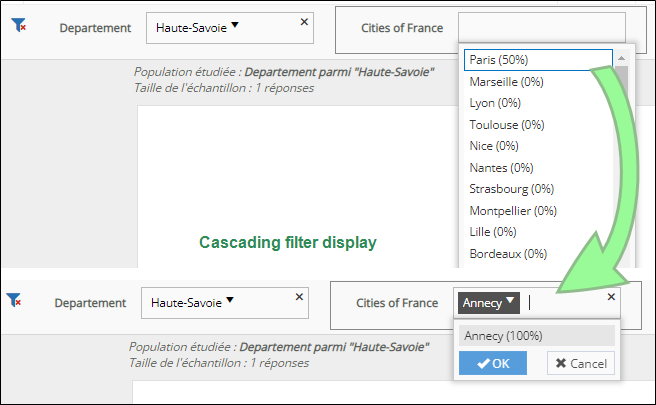
NOTE: When this option is checked, modalities with 0 answers will not appear in the list of modalities to select from the filter.