Define shortcuts
Define shortcuts allows to label each of the forms which will be published on the SphinxOnline server . The name chosen appears in the URL of the form.
By default, the name of the form used is the shortcut for each of the forms.
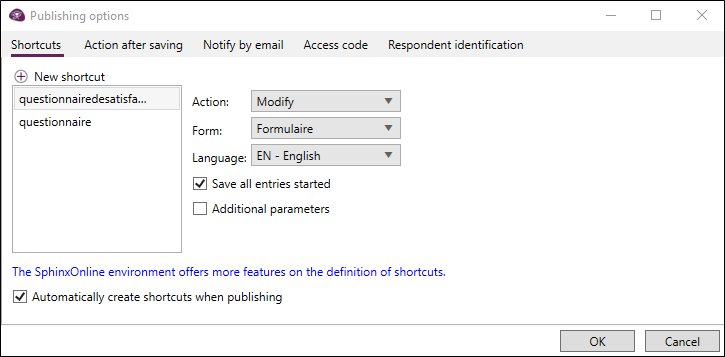
To create a new shortcut, proceed as follows:
-
From the Questionnaire Design environment, Distribution tab, click on Define Shortcuts or when publishing your study in the Publishing options, get to the Shortcuts tab.
-
Click on the
 button New shortcut.
-
Select the action to perform (enter, modify).
Enter: action to enter a new response.
Modify: action allowing to get back a response via an authentication key (by default, it is the CLE variable).
-
Select the form to be associated with the action.
-
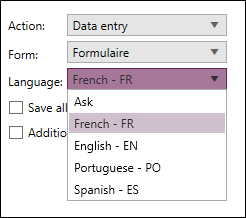
Select the language to be associated with the shortcut.
In the case of a multilingual survey, you can allow respondents to choose the language of the questionnaire. To do this, select Ask from the Language drop-down menu.
-
If you want to save the current entries (abandoned entries from the 2nd page), check the box Save all entries started.
-
(Optional) If you want to add additional parameters, select the Additional Parameters checkbox, then enter the parameters you want to use in the field provided.
Additional parameters (Data entry, modification)
 For a data entry action:
-
autosave : autosave = 1, recording for each question answer (not for each page).
-
conditions : conditions=no, jumps and display conditions are ignored.
-
login : Specifies the password for the entry.
-
key : Provides a key for the entry. If the key does not exist, a new observation will be created.
-
readonly : readonly=1, the form is not editable.
-
svnjp : svnjp=1, allows saving the response and continuing the questionnaire entry.
-
transactions : transactions=no, all pages are displayed one after the other.
-
linkafter : &linkafter=http://......................., the specified script will be executed after the observation has been saved.
This can be used, for example, to write data into another database.
-
linktype : Used to force an action after saving that is different from the default action set during publication. : url|script|confirm
-
&linktype=script&linkurl=<url encodée> : The responses will be passed as parameters to the script (GET method).
-
&linktype=scriptpost&linkurl=<url encodée> : The responses will be passed as parameters to the script (POST method). Note: The responses will be returned without the final recalculation of computed variables.
-
&linktype=url&linkurl=<url encodée>
-
&linktype=form&linkparam=1&linkparam2=html : Information will be sent to form index 1 (indexes start at 0) and as an HTML page. If this parameter is missing, the return will be in the form of an image without clickable links.
-
&linktype=report&linkparam=1 : Information will be sent to report index 1 (indexes start at 0).
-
&linktype=confirm : A simple confirmation will be returned.
-
For a modification action:
-
conditions : conditions=no, jumps and display conditions are ignored.
-
login : Specifies the password for the entry.
-
key : Provides a key for the entry.
-
transactions: transactions=no, all pages are displayed one after the other.
NOTE: If you don't want to create shortcuts automatically, uncheck the box Automatically create shortcuts when publishing.
-
-
Click on OK to validate.
NOTE: You can find all shortcuts configured in Sphinx iQ3 in the General section, Manage links tab on SphinxOnline. Learn more about links management online by reading the page Manage links in SphinxOnline.