Modify a text with AI
Thanks to the integration of artificial intelligence, you can easily modify text boxes in analysis views. Whether it's to rephrase, improve clarity, correct grammar, or enhance your content, AI helps you perfect your text in just a few clicks.
You can use this AI feature in a text box from the Datavisualization environment in the Analysis section
Once your text has been entered in the box:
-
Select the text box (learn more about text box addition).
-
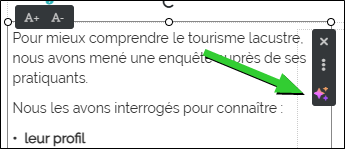
Click on the icon
 .
 First time user? Accept the AI terms of use.
Acceptance of the general conditions specific to AI assistants is required.
-
Read the specific terms and conditions for AI Assistants carefully.
-
Check the following box:
-
"I acknowledge that I have accepted without reservation the ‘AI Assistant’ addendum displayed above and I declare that I am the legal representative of the holder of this account or have the authority to represent them validly and that I accept liability in the event of any false declaration".
-
-
Click on the I accept button.
-
-
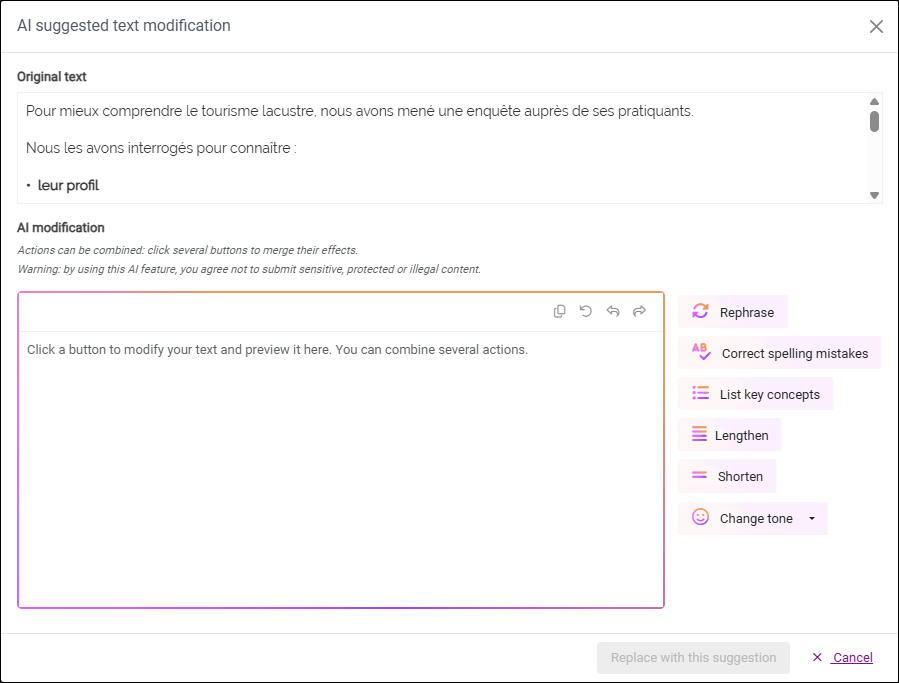
Click on one of the categories to the right to edit your original text. You can:
- Rephrase: AI suggests a new version while keeping your text's meaning.
-
Correct spelling mistakes: AI identifies and corrects orthographic, grammatical and punctuation errors.
-
List key concepts: AI extracts and lists the main ideas of the text.
-
Lengthen: AI develops the text by adding details.
-
Shorten: AI summarizes the text while deleting unnecessary elements.
-
Change tone: AI adapts the style of the text according to the desired tone (professional, persuasive, friendly or simple and direct).
-
If you are satisfied with the content provided by AI, click on Replace with this suggestion to finish.
NOTE: If you do multiple actions one after the other, you can go back to the previous suggestion or to the original text at any moment by clicking on the arrows on the top right-hand corner of the AI-generated text.

-
(Optional) Directly edit the content of the text revised by AI (formatting is done in the analysis view). Then, click on Replace with this suggestion to confirm your change.