INSERT ACTION BUTTON / PROGRESS BAR
The group navigation allows adding action buttons and a progress bar to your form. To do so:
-
From the Insert tab, Navigation group.
-
Click on action Button or Progress Bar.

Insert an action button
-
Select the action to associate with the action button you are going to create.
Several types of actions are possible:
-
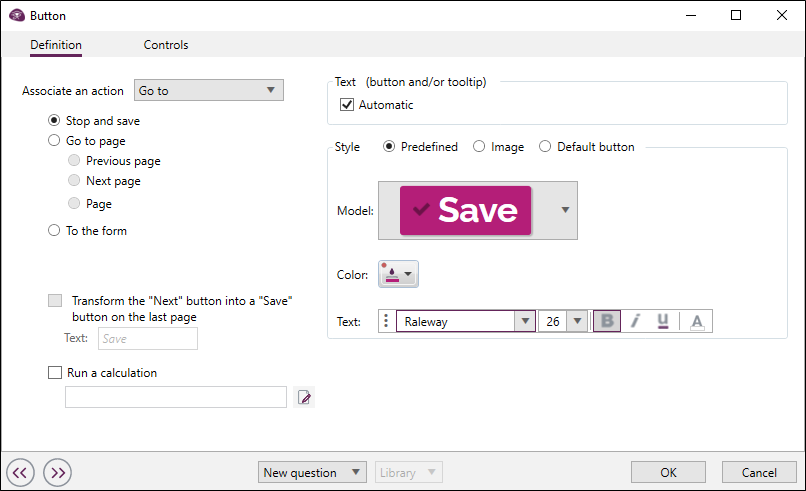
Go to: set the button to go to the next page, previous page, to a specific page, to another form or to save the answer.
when the button allows to go to the next page, you can automatically transform it into "Save" on the last page by checking the option Transform the "Next" button into "Save" on the last page. the text "Save" can be modified.
-
Print: this action allows you to print the selected form.
-
Calculate: allows to execute a calculation when the respondent clicks on the button.
-
Display : this action allows you to display a file (e.g. PDF), a web site or to make a request.
-
Perform an AI prompt : allows you to execute a prompt when you click on the button.
4 actions can be associated with a request: data entry, modify, view tables and view results. To do this:
-
Select the action to use.
-
Choose the form.
-
Choose the language to use,
NOTE: To allow respondents to choose the language to be used, select "Ask" from the Language drop-down menu.
-
(Optional) To add advanced options, Check the Additional parameters box . See the list of additional parameters that can be added depending on the action.
NOTE: It is recommended that you check the Open in new tab box so that the respondent can continue to enter their responses while viewing the file, website or request in a new tab.
-
-
Customize the style of your button by changing: the template, the color and the font of the text.
Insert a progress bar
-
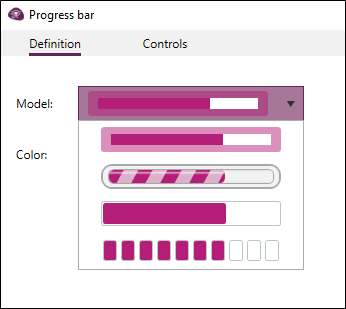
Select the model and color of your bar.